Adding a frame to a document in Word can enhance its visual appeal and professionalism. As a frame supplier, I understand the importance of both the digital presentation of documents and the physical frames we provide. In this blog, I'll guide you through the process of adding a frame to a document in Word, and also introduce some of the high - quality frames we offer.
Step 1: Open Your Document in Microsoft Word
First, launch Microsoft Word on your computer. If you already have a document that you want to add a frame to, open it. If not, you can start a new one. You can do this by clicking on the "File" tab in the top - left corner of the Word window and then selecting "Open" to choose an existing file or "New" to create a new blank document.
Step 2: Access the Page Borders Menu
Once your document is open, navigate to the "Design" tab on the Word ribbon. This tab contains various page layout and formatting options. In the "Page Background" group, you'll find the "Page Borders" button. Click on it to open the "Borders and Shading" dialog box.
Step 3: Choose the Frame Type
In the "Borders and Shading" dialog box, select the "Page Border" tab if it's not already selected. Here, you have several options for the frame type. You can choose from a variety of styles such as solid lines, dashed lines, dotted lines, and more. You can also adjust the width, color, and art style of the frame.
If you want a simple and classic look, a solid line frame might be the best choice. For a more decorative touch, you can select an art style. Word offers many pre - designed art styles like flowers, stars, and geometric shapes.
Step 4: Set the Frame Options
After choosing the frame type, you can further customize the frame. In the dialog box, you can set where the frame will be applied. You can choose to apply the frame to all pages, the first page only, or a section of the document. You also have the option to change the distance between the text and the frame. Adjusting this value can make your document look more balanced.
There are also options to apply the frame to the whole page or just the text. Selecting "Whole page" will place the frame around the entire page area, while "Text" will place it only around the content of the text.
Step 5: Preview and Apply the Frame
Before finalizing your frame selection, use the preview area in the "Borders and Shading" dialog box to see how the frame will look in your document. Make any necessary adjustments to the style, color, or width until you're satisfied with the appearance.


Once you're happy with the preview, click the "OK" button. Word will immediately apply the frame to your document according to the settings you've chosen.
Introducing Our Frame Products
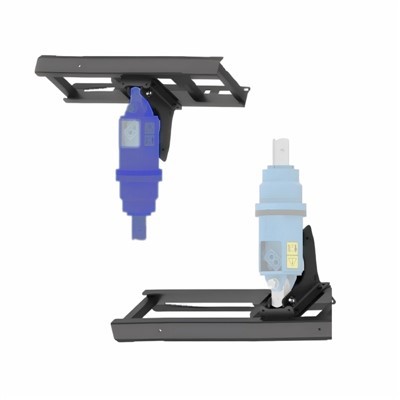
As a frame supplier, we offer a wide range of frames suitable for various applications. Our Fixed Centre Cradle Frame is a sturdily - built frame designed to provide a stable and reliable support structure. It's made from high - quality materials, ensuring long - term durability and performance.
Another popular product in our catalog is the Side Shift Cradle Frame. This frame offers flexibility with its side - shifting feature, allowing for easy adjustment in different working conditions. Whether you're in the construction, engineering, or any other industry that requires reliable framing solutions, our frames are designed to meet your needs.
Benefits of Using Our Frames
- Quality Materials: We use only the finest materials in the manufacturing of our frames, which guarantees their strength and longevity. This means you won't have to worry about frequent replacements, saving you both time and money in the long run.
- Customization Options: We understand that different projects have different requirements. That's why we offer customization services. You can choose the size, color, and other specifications of the frame to perfectly match your project needs.
- Expert Support: Our team of experts is always ready to assist you with any questions or concerns you may have. Whether you need help with frame selection or installation guidance, we're here to provide you with the best possible support.
Contact Us for a Purchase
If you're interested in our frame products, we encourage you to reach out to us for a purchase. We're committed to providing you with the highest - quality frames and excellent customer service. Our frames can make a significant difference in the stability and functionality of your projects. Whether you're a small - scale contractor or a large corporation, we have the right frame solutions for you.
Don't hesitate to start a conversation with us to discuss your specific requirements. We look forward to partnering with you on your next project and helping you choose the best frame for your needs.
References
- Microsoft Word User Manual
- Product Specification Documents of Our Frame Products